G-Field for Electric Utilities
Electric utility asset survey app for field teams
Build an asset register of poles, transformers and lines, record outages and survey consumer connections, all on a map-first Android app. Field staff can adapt the predefined forms on the phone without waiting for a desktop GIS team.

Electric Utilities
Power and electric infrastructure mapping
What the Electric Utilities forms capture
The Electric Utilities sector opens with 5 predefined tables, plus Others for a custom form:
- Power Asset Register
- Transformer Survey
- Power Line Survey
- Outage Register
- Consumer Connection Survey
- Others (custom form)
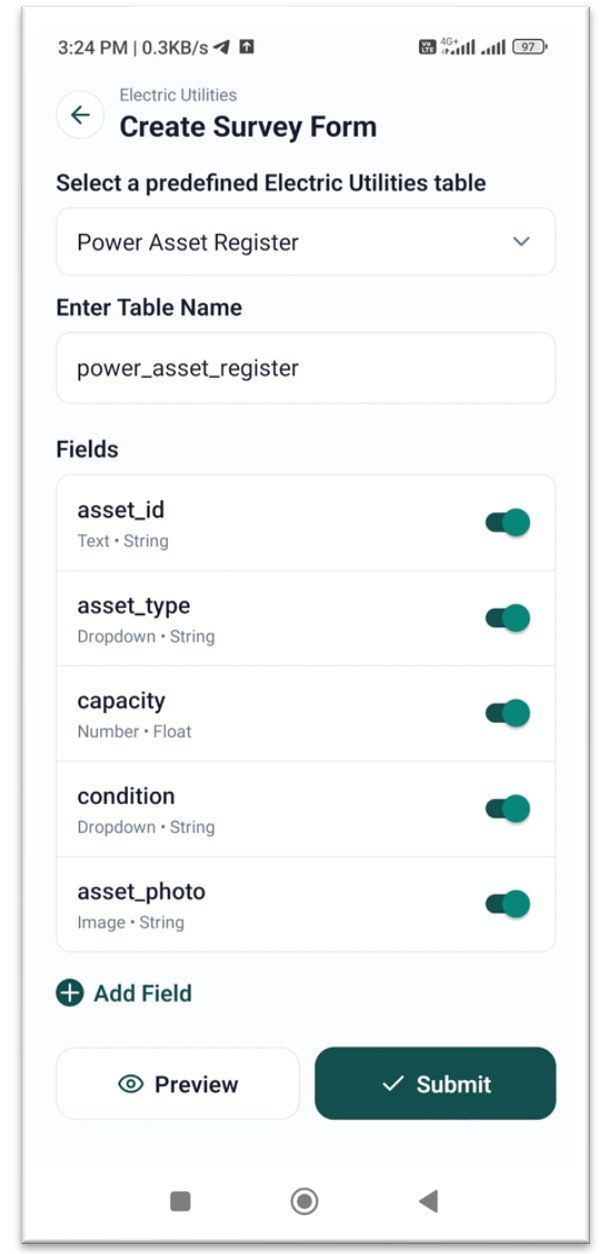
Fields in the Power Asset Register
The default fields shown in the app include:
- asset_id
- asset_type
- capacity
- condition
- asset_photo
Switch any default field off, or use Add Field to add your own: Text, Dropdown, Radio, Checkbox, Number, Date, Image or Video, stored as String, Integer, Float or Boolean, with an optional unit.
Recommended geometry
Every G-Field form stores one geometry type, following the OGC Simple Features model, with WGS 84 latitude and longitude.
Point
RecommendedPoles, transformers, meters and consumer connections
LineString
HT/LT power lines and feeder routes
Polygon
Substation premises and service areas
Electric Utilities survey workflow in 5 steps
- Open Electric Utilities, choose Create Form and pick Power Asset Register, Transformer Survey or another table.
- Keep fields such as asset type, capacity, condition and asset photo; add your own, for example a Number field with the unit “kVA”.
- Select Point for poles and transformers or LineString for line surveys.
- At each asset, tap Locate My Position, set the marker, fill the form, attach a photo and Submit.
- Review records in View Survey, correct any entry with Info → Edit → Update, and export the CSV.
Try G-Field for electric utilities surveys
Install the app, open the Electric Utilities sector and build your first form on the phone.
- Questions or a team rolloutinfo@garudalytics.com
- Supportsupport@garudalytics.com